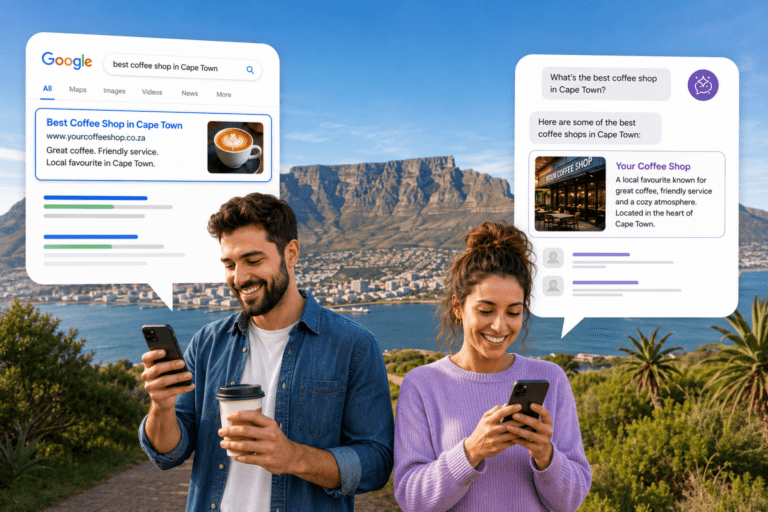
Google may ask you to verify your Google Business Profile by recording a video of your business. The purpose is to confirm that your business exists at the stated location, operates as described, and is managed by someone with permission to access it.
The process is straightforward, but preparation matters. You only get one continuous recording, so plan your route before you press record. Here is how to prepare and film your verification video.
Understand the Rules Before You Start
Before recording, keep these requirements in mind.
Record live through Google.
You must film directly through the video verification option in your Google Business Profile. You cannot upload an existing video from your phone’s gallery.
Use one continuous shot.
Do not pause, stop, splice, or edit the video. If you make a mistake, you will need to start a new recording.
Enable phone permissions.
Turn on Location Services and allow the required camera and microphone permissions before you begin.
Keep it within the time limit.
Aim for a recording of around 60 to 90 seconds, keeping within Google’s stated requirement of 30 seconds to two minutes where applicable.
Protect private information.
Do not film customers, members of the public, bank statements, identity documents, or other sensitive information.
1. Prove Your Business Location
Start outside the property associated with your Google Business Profile.
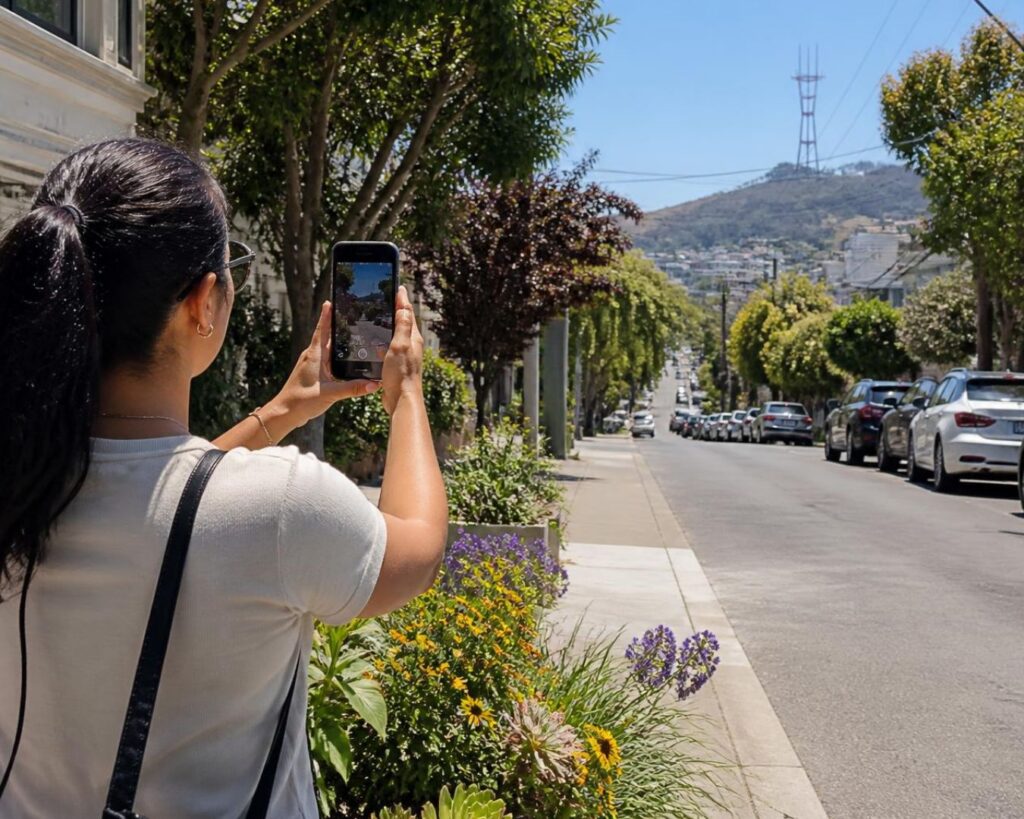
Film a street sign, nearby intersection, or recognisable landmark to help establish where the business is located. Then pan towards the building and show the street number or official property address.
If there are neighbouring businesses or other recognisable features that help identify the location, include them in the recording.
Keep the camera steady and move slowly enough for the details to be seen.
2. Show Your Business Name and Entrance
Next, film the entrance to your business and show its permanent signage, logo, or storefront.
The business name on the physical sign should match the name on your Google Business Profile. If the names differ, this could create problems during verification.
If your business operates from an office building, shared workspace, or suite without signage facing the street, show the building’s directory, reception area, or suite number where appropriate.
The goal is to connect the business name on your profile to the physical premises.
3. Demonstrate That You Manage the Business
Google needs evidence that you have authorised access to the business, not simply that you can visit the premises.
One way to demonstrate this is to film yourself unlocking the entrance using a key, access card, or keypad. If appropriate, you can also show access to a staff-only area, cash register, or point-of-sale system.
Choose evidence that reflects your actual role in the business. You do not need to show every possible example. One or two relevant demonstrations may be enough.
4. Show Evidence of Business Operations
Once inside, continue filming your workplace and the equipment or materials used to operate the business.
Depending on your industry, this could include stock, tools, machinery, branded products, workstations, or other equipment relevant to your services.
You can also show business documents, such as a licence or utility bill, if they help establish the business name and address. Avoid exposing account numbers, identity numbers, signatures, or other information that is not needed for verification.
If relevant, you can briefly show a laptop or tablet displaying your official website or business management system. Make sure that private customer information is not visible.
Choose evidence that makes sense for your type of business. A retail shop, plumbing company, and consulting practice will not have the same setup, and that is perfectly fine.
5. Special Instructions for Service-Area Businesses
Do you travel to customers instead of operating from a shop? You can still prepare a video that demonstrates your business and your connection to it.
Start by showing a street sign or recognisable landmark in your service area. Then film your branded vehicle, company apparel, or work equipment.
You could demonstrate authorised access by unlocking your work vehicle, opening the boot or van doors, and showing the tools or equipment you use to provide your services.
Where relevant, you may also show a business registration document, insurance paperwork, or your business management software.
Focus on evidence that links you to the business and demonstrates that it operates. Do not film a residential address or private property unnecessarily.
Remember that service-area businesses generally should not display a residential address on their public Google Business Profile if customers are not served at that address.
6. Submit Your Video for Verification
Before recording, make sure you have planned the sequence so that you can complete it in one take.
Open your Google Business Profile, select the available video verification option, and follow the on-screen instructions. Record the video live through the verification process.
When you have captured the required evidence, follow the prompts to submit your recording.
Google will review the video, and the time required can vary. Check your profile for updates and follow any additional instructions Google provides if the verification is unsuccessful or further evidence is requested.
Final Checklist Before You Press Record
Check that Location Services are enabled, camera and microphone permissions are granted, and your phone has enough battery. Make sure your business signage, address, access method, and relevant equipment are ready to film.
Plan the route from outside to inside, avoid unnecessary movement, and keep sensitive information out of view.
Most importantly, remember that the video needs to demonstrate three things: where your business is, what your business does, and that you have authorised access to manage it.
A little preparation can save you from having to start the whole recording again.